
Showing posts with label svg. Show all posts

Saturday, January 15, 2022

Let's Get Geometrical - CTMH Technique Blog Hop


Whether you arrived from Danielle's page or just stumbled upon us, WELCOME to TheScrapBuzz blog and this month's Technique Hop. For January, we are focusing on Geometric Shapes/Patterns.  Follow the links to hop from blog to blog for techniques, tips, and artwork!
 
If you get lost, find broken links or have other issues, you can find a list of all this month's participants on Melissa's page. Our group is larger this month - how exciting!!  Be sure your are commenting so the Makers know you appreciate their efforts and continue to share their projects!

I was uploading digital images to my Cricut account recently, including Geometric Circle, and thought it would perfect for our theme.

I used a pattern called Circle Collection from one of our retired How To books called Wishes. It's also similar to this card from the current seasonal catalog.
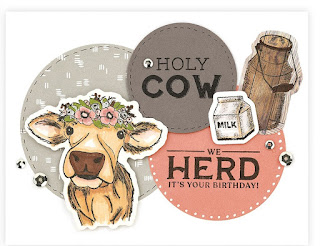
 
The circle shape reminded me of one of the the Candid Moments papers, so I used that collection for my color palette and the patterned paper. It was hard to decide if I wanted to feature the triangle or circle on my project.


I used an extra image as a stencil and sponged onto the 5x7 card front with matching Carolina ink.
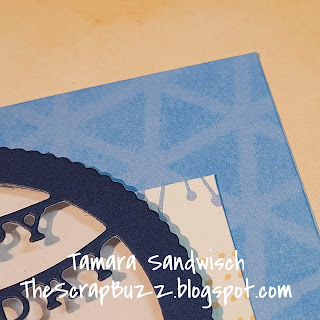

The circle made me think of shakers so I pulled out the Happy Birthday die. I was surprised that the orange Bitty Beads coordinated with the peach and papaya!  They look like sundance in my picture.

And now for some sad news:  While working on this card I discovered one of the Thin Cuts from my Party Gnomes set is missing. I know I had it several months ago. I looked for a while but it wasn't anywhere obvious. Perhaps it will show up on the bottom of an ink pad or in a pack of cardstock someday. I hope it didn't get tossed with paper scraps!!
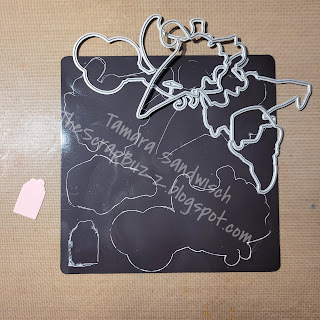

Make sure this tragedy doesn't happen to you!!  Always put your Thin Cuts back onto the magnetic sheet (included with all Thin Cuts). I usually do, so I'm not sure what could have happened, other than the gift is smaller that the other shapes.  Another tip was shared by a Maker back when we carried chalk markers, but it works with White Gel Pens too!  (We featured the pens in our hop last month.)  Simply trace around your dies so you know they're all there when you put them away.  Be sure to let the ink dry before you move your shapes. I found the 0.8 size (medium) worked best for me.
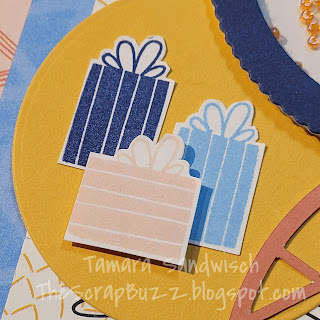

While fussy cutting the gifts, I realized I could easily make a present with the bow on a horizontal box by using a sticky note to Pick-and-Omit the stamp image.
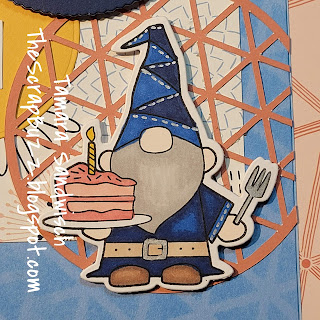

This is the first time I used any of my Precious Metals Metallic Markers. I colored the fork and belt buckle, then added a little stitching here and there. These are definitely something I need to play with in the future!

Please scroll down and leave a comment then hop over to see what Maz has to share this month!

Monday, November 15, 2021

Silver & Gold Technique Blog Hop

Welcome to The Scrap Buzz and this month's edition of the Technique Blog Hop. You have arrived from visiting Judy. Keep following the links to visit all of the participants. If you get lost, a Colette list can be found on Melissa’s page. This month we are featuring Silver & Gold.

This month, I put a little TECH in the technique hop. My project is not paper, it's fabric and vinyl! DID YOU KNOW Close To My Heart offers heat transfer vinyl (HTV)? It can be found under Specialty Paper (although it's not paper). You can do things with vinyl that can also be done with paper, including cutting it with a Cricut, Silhouette, etc. HTV can be used for things where paper wouldn't work or be permanent such as, to decorate the front of scrapbook albums, personalize items, and MAKE SHIRTS! 

In addition to our Cricut Collections and other Cricut images, you can also upload other types of images to Design Space. DID YOU KNOW, Close To My Heart offers digital art in the form of SVGs? 

What is an SVG file? An SVG file, short for scalable vector graphic file, is a standard graphics file type used for rendering two-dimensional images on the internet.

To me, that translates as, “works with electronic cutting machines!”  You can find the images offered on your makers website by going to SHOP, then to the Digital Art category. Individual images are only $1, plus there’s no shipping! I used the Craft Queen image for my shirt and cut it from our Silver Glitter HTV. (Note:  I pre-washed my shirt.) In case you missed it, the coordinating die cut for the paper suites are now SVG (instead of specifically Cricut images), so they're now more usable to more people!

Sometimes a special promotion will include an SVG, such as the new Merry Making ornaments. Once you purchase an ornament product, the SVG files are added to your digital library automatically. You can have your glitter paper cut and ready to adhere to the ornaments as soon as they arrive!! I've heard a lot of questions about where to find Digital Art after purchase.  Access your digital library from your Maker's website by clicking on your name to open the drop down menu. From there, click on account. On the left side, (or new drop down menu), select Digital Library. All of your purchased images will be here. Click on the blue download icon to add them to your device.

The next question is always "How to do I upload Digital Art to Cricut Design Space?" Here's a step-by-step:

  1. Open the Cricut App on your PC [or Apple device]. Start a NEW PROJECT.
  2. Click on UPLOAD.
  3. UPLOAD IMAGE with Drag & Drop or [BROWSE FILES] and select your downloaded image.
  4. You may with to give your image a name (and tag with keywords). Click UPLOAD [SAVE].
  5. Your new image will now show under Recent Uploads [Images]. Click on it and ADD TO CANVAS [INSERT].
  6. Next time you want to use this image, click on UPLOAD, then look for it under Recent Uploads, or View All [Open Uploaded Images]. You can also search for it with one of your keywords. 
  7. Resize your image as desired.
  8. MAKE IT.
  9. If the preview looks like all of the parts of your images are being cut separately, and not spaced correctly, CANCEL to go back to the [CANVAS], then select the entire image, and [ACTION] ATTACH. Continue with MAKE IT. (Note:  this is for single color images. For layered images, each color needs to be attached separately.)
  10. For HTV, be sure to MIRROR [on CANVAS, EDIT, HORIZONTAL] the image so that it's backwards.
  11. Put vinyl shiny side down on your mat. 
  12. Use Vinyl setting on your machine. CONTINUE and cut image.
  13. Weed the vinyl.
  14. Follow Easy Press/iron instructions. Here is an online Heat Guide and a printable version.  For CTMH's vinyl FAQ sheet, click here.
  15. Pre-heat Easy Press/iron.
  16. Make sure there are no wrinkles in fabric, or other item is flat and stable.
  17. Pre-heat the base item to which you are adding the vinyl.
  18. Lay Vinyl on your base, shiny side up this time (so you can read it), check placement.
  19. Heat the vinyl as directed. 
  20. Heat the image from the backside of a shirt too.  This isn't necessary on an album.
  21. Check adhesion. Reheat for a few seconds if needed.
  22. Remove plastic backing when directed (hot or cold).

Think of all the fun crafts you can make for the holidays using HTV:  matching family shirts, monogrammed napkins, personalized gifts, and of course, albums! 

A few years ago, I made this video to show how to put vinyl on an album. The vinyl image shown in the video is from  These Are My People kit.

I have been asked to do a live video showing how to size images in Cricut for items like the Merry Making ornaments, so watch my Facebook page for that!  I think it will be a Zoom video because I think I can do the screen share thing! (We'll find out.)

 Before you go on to see what Katy is sharing, please leave a comment. If you do not have a Maker, let me know how I can help, and check out my website.